Images
View and manage photos collected from a device. Use this page to browse, filter, download, and take action on images.
What you can do
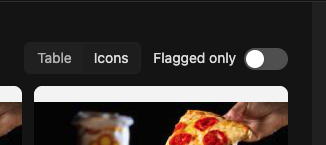
Browse images in a grid or detail view
Filter by date range
Open a larger preview and view metadata (time, size)
Download selected photos
Requirements
The device must be enrolled and online. See Device Management.
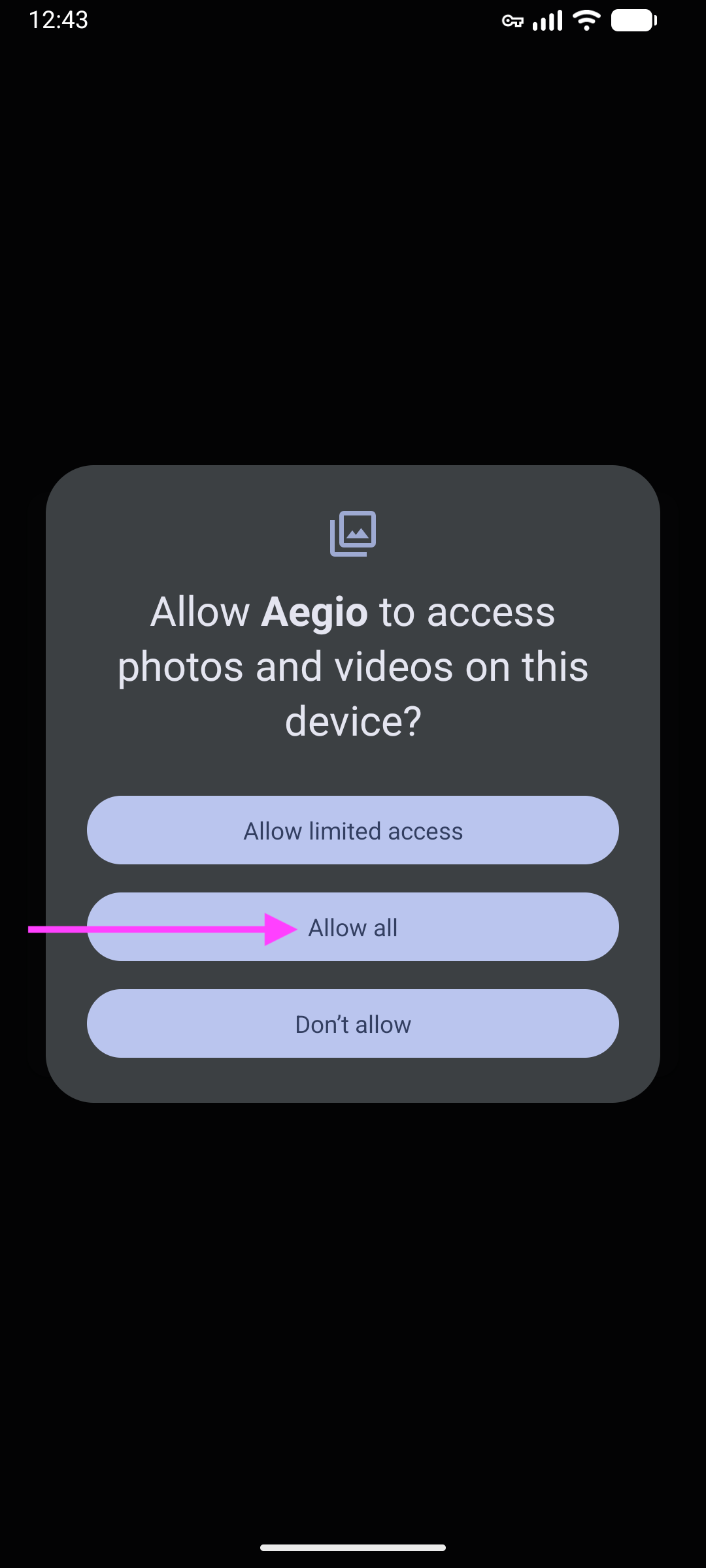
The device must grant storage/media permissions to Aegio.
Turn on image collection on a device
The exact steps vary by platform, but generally:
Enable Images on a device
On the managed device, open the Aegio app and sign in with the enrolled account.
Grant storage/media (Photos) permission to Aegio when prompted.
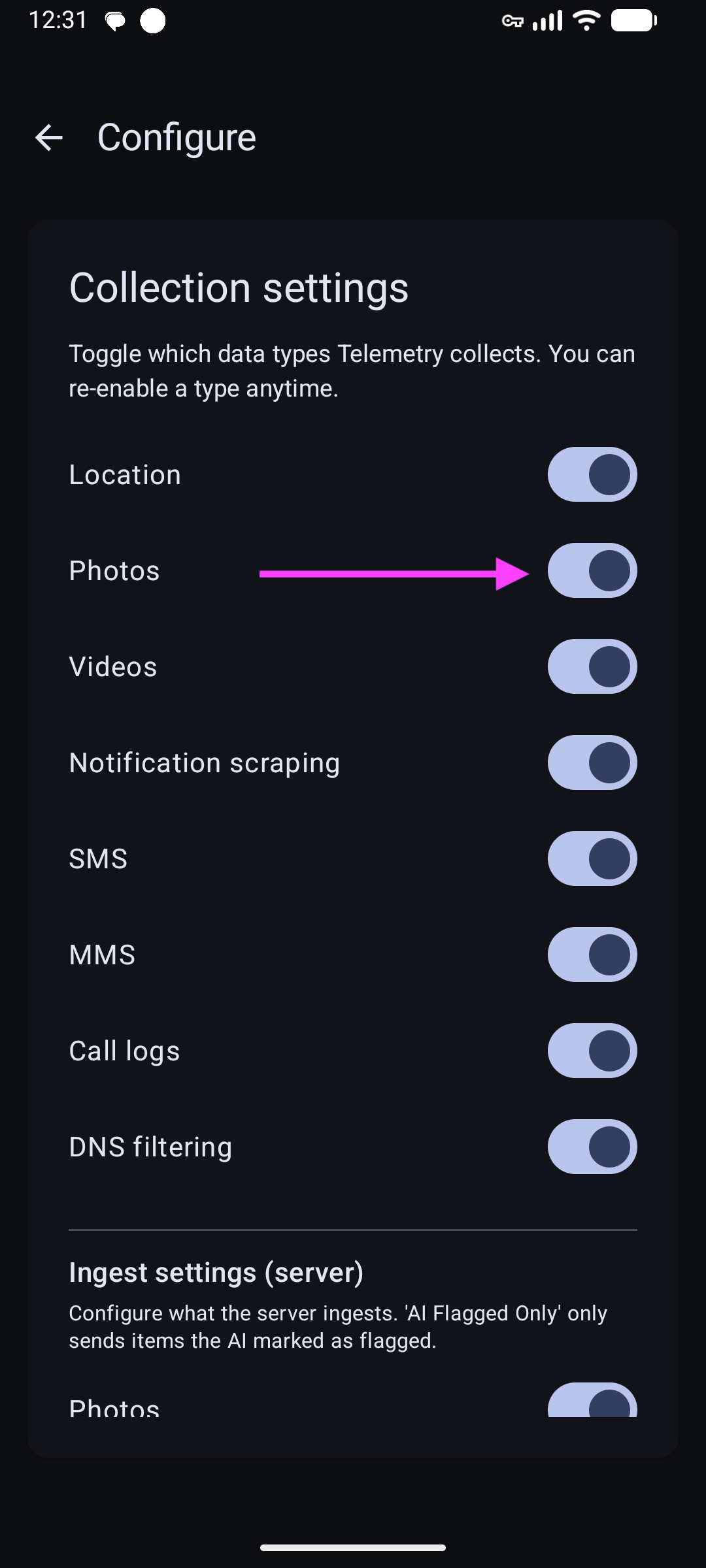
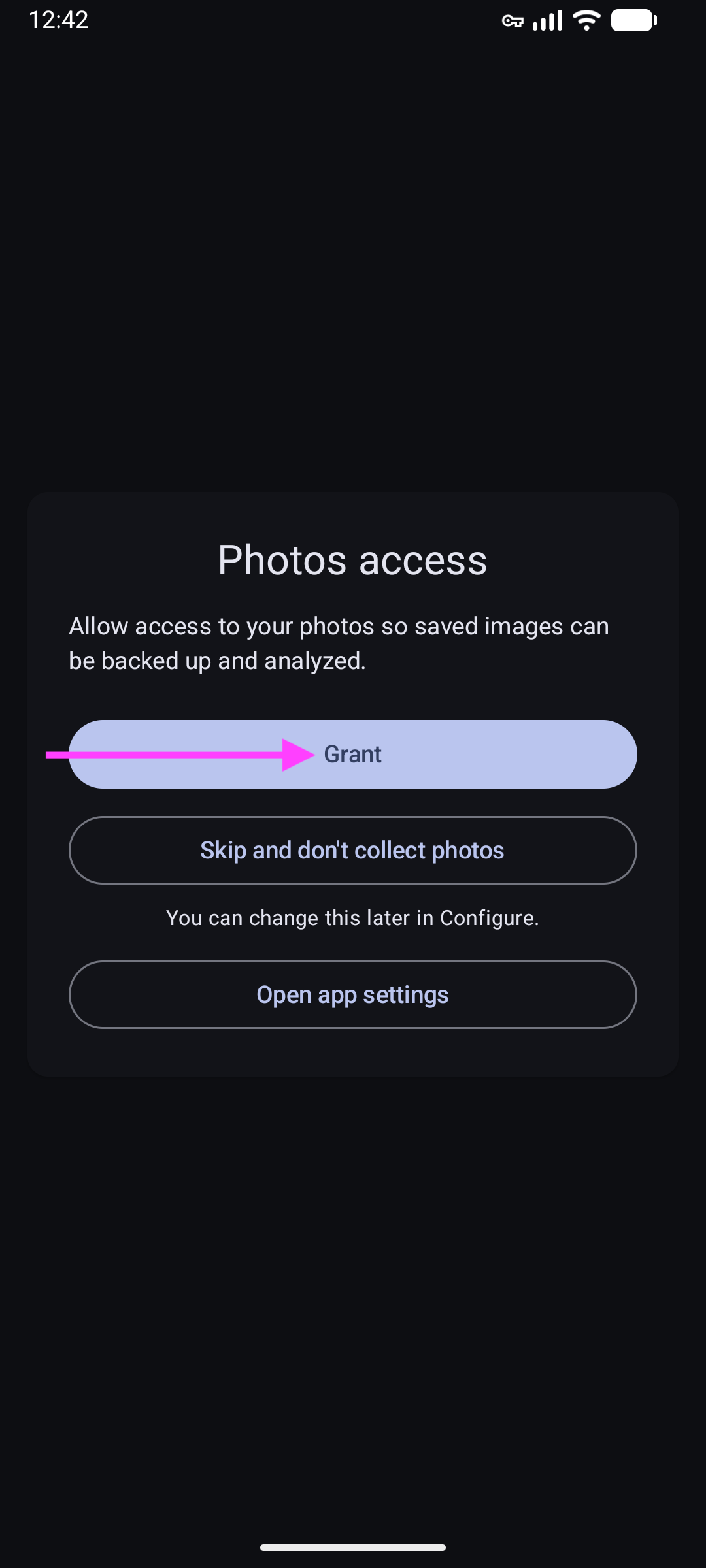
Keep the device connected to the internet (Wi‑Fi or mobile data) so new images can sync.
Browse and download images
View and download images
In the sidebar, select a device, then click Images.
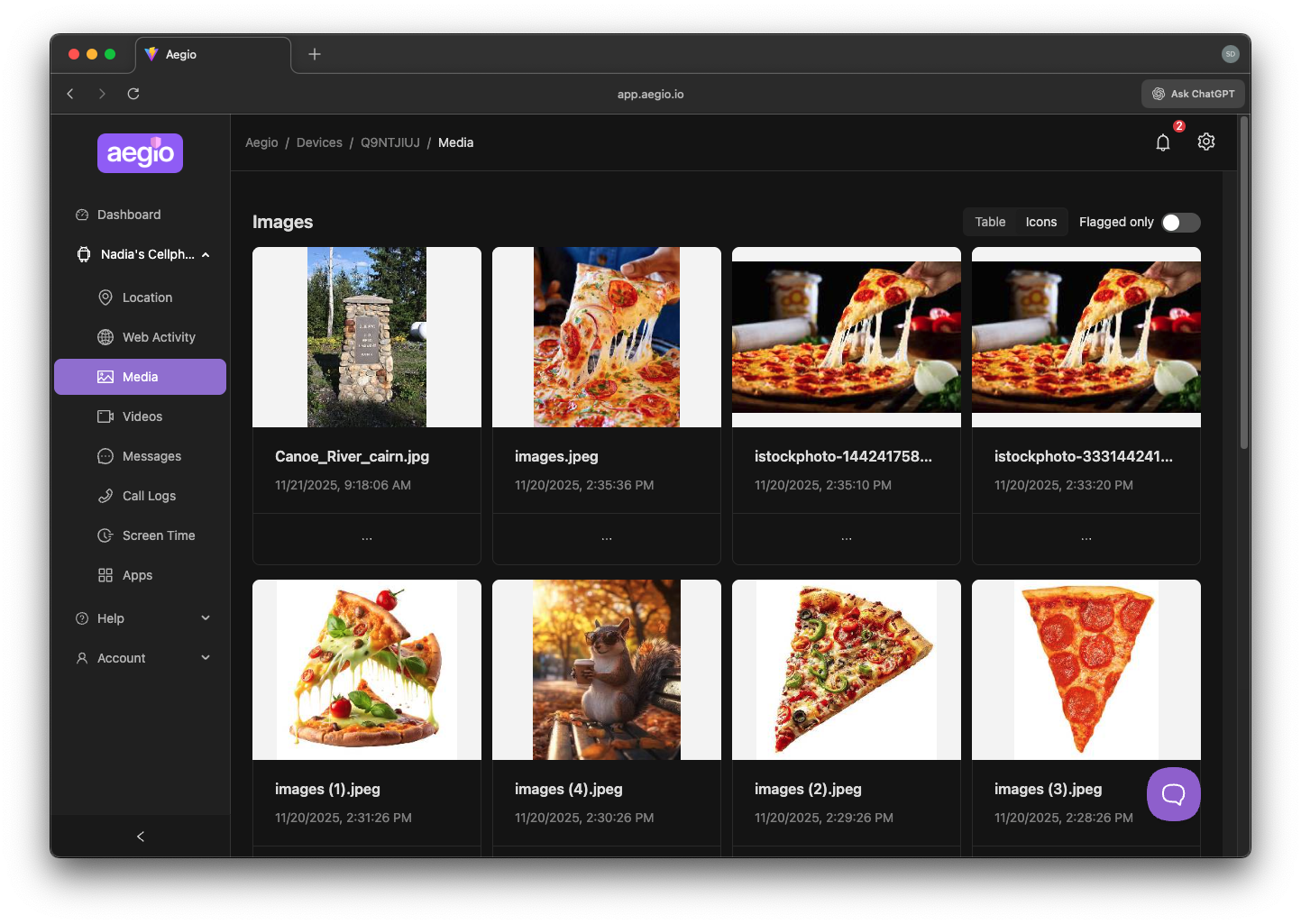
Use the date filter to narrow results. Click an image to preview.
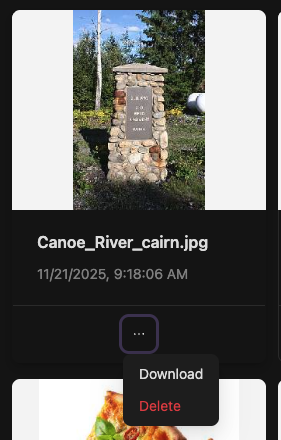
Select images and choose Download or use the context menu to delete selected items.
Privacy and data handling
Data retention follows your plan.
To remove specific photos, use the context menu on the Images page to delete selected items.
Troubleshooting
No images
The device may not have uploaded any yet or lacks permissions.
Slow loading
Large libraries may take time. Use date filters to limit results.
FAQs
How can I export all images?
See Export Data.