Web Activity
Review a device’s recent browsing activity. Filter by date, search domains, and open items for details.
What you can do
View visited domains and pages with timestamps
Filter by date range and search keywords
Export activity for a selected period
Requirements
The device must be enrolled and online. See Device Management.
The device must grant the required permissions for web activity collection (where applicable).
Turn on web activity collection on a device
Steps vary by platform, but generally:
Enable Web Activity on a device
On the managed device, open the Aegio app and sign in with the enrolled account.
Enable the required system access when prompted
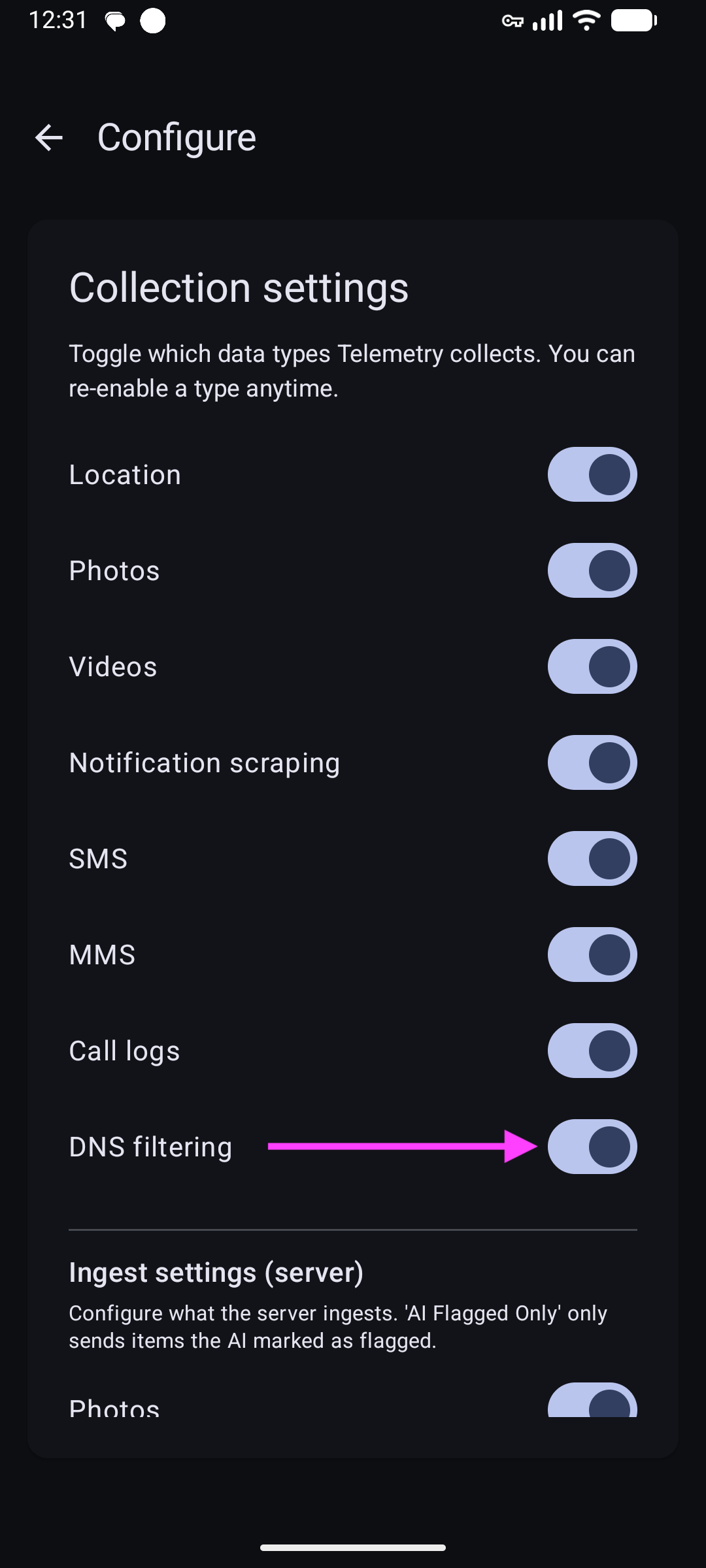
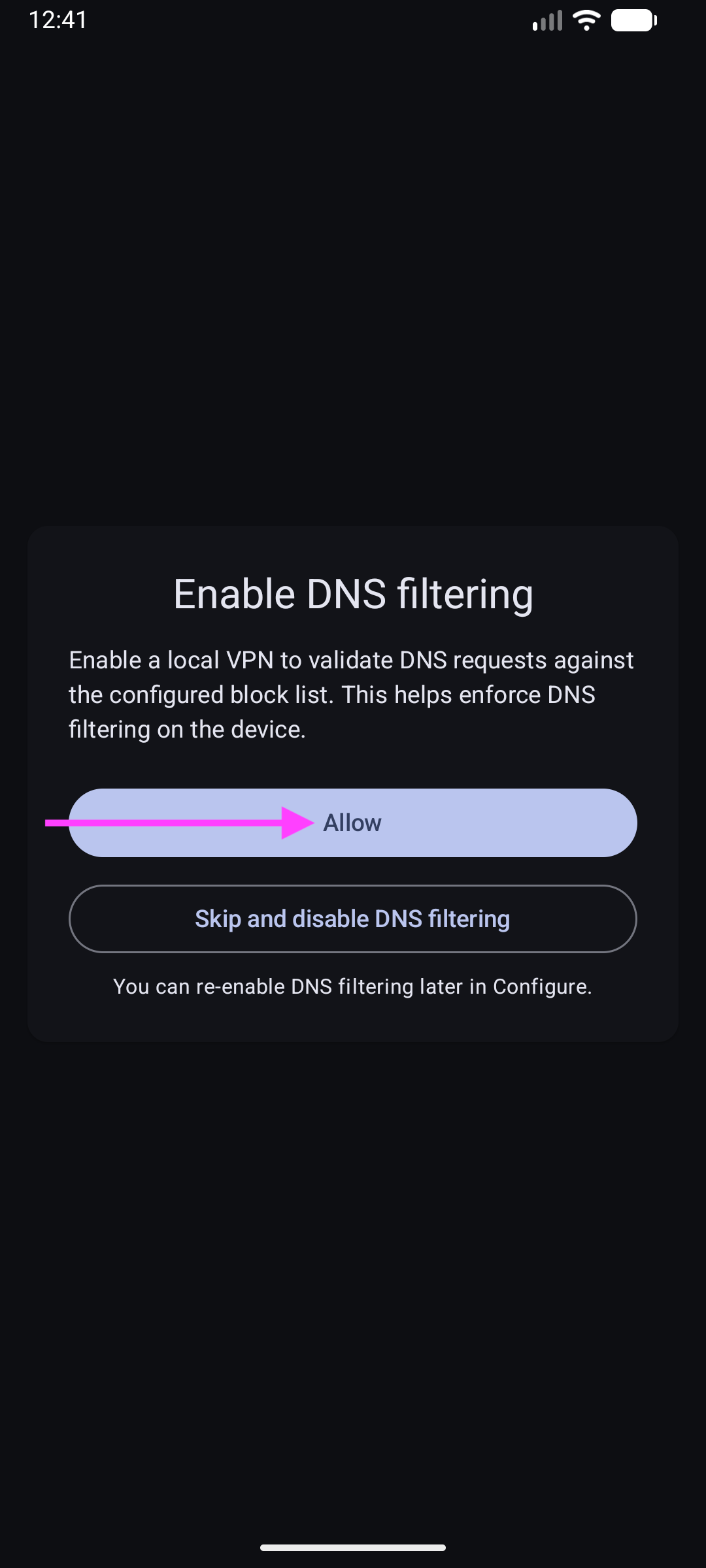
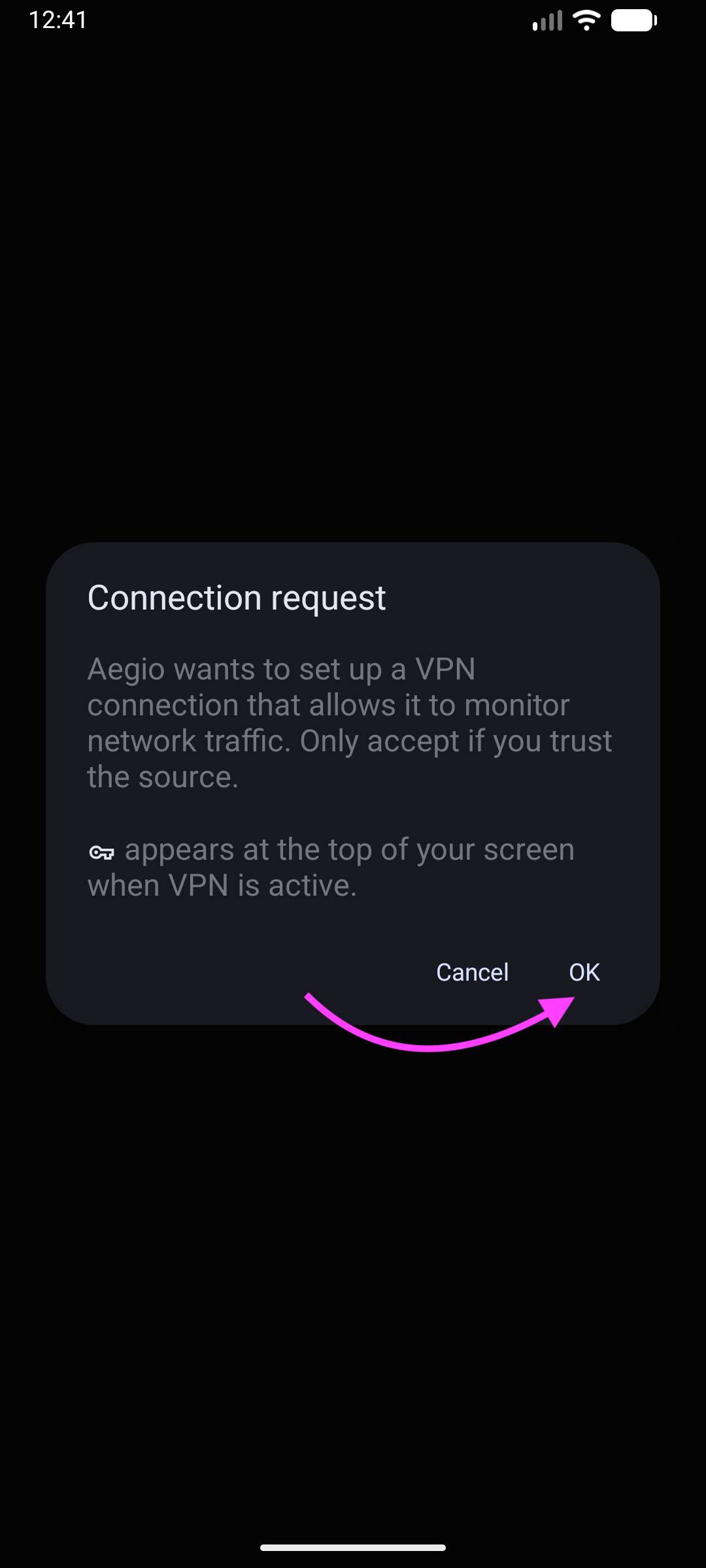
Keep the device connected to the internet so activity can sync to the web app.
Browse and filter
View web activity
Select a device, then click Web Activity in the sidebar.
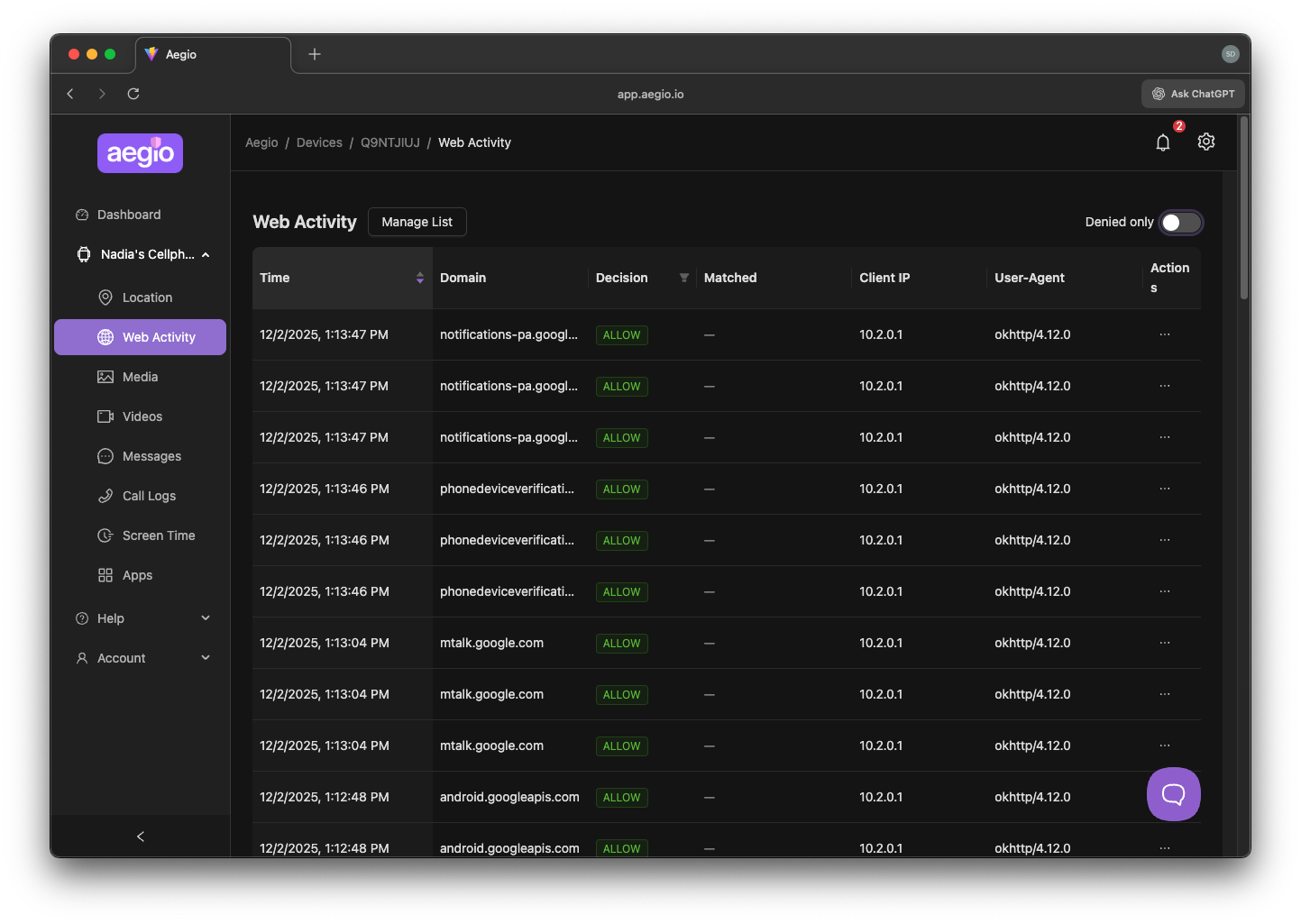
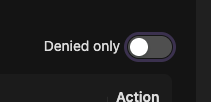
Use the date picker and search box to narrow results. Can be toggled to view denied requests only
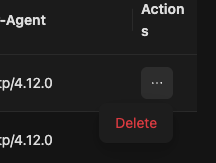
To delete web activity items, select them and click Delete.
Tip: To manage allowed/blocked sites, open Account → Web Deny List if available for your plan.
Privacy and data handling
Web activity may include sensitive history. Access is limited to authorized members.
Retention follows your plan.
Troubleshooting
No entries
The device may not have synced yet, or this feature isn’t enabled on the device.
FAQs
How do I export web activity?
See Export Data.