Location Tracking
Use Location Tracking to see where a device is, review recent movement, and receive notifications about significant location events. This topic explains how it works, how to get started, and how to troubleshoot common issues.
What you can do
View the current location of a device on a map
Browse recent location history with timestamps
Filter by date/time range
Requirements
A device that is enrolled and online. See Device Management.
Location permissions granted on the device and OS-level location services enabled.
A stable internet connection on the device so it can send telemetry.
Turn on location tracking on a device
The exact steps can vary by platform and OS version, but the general flow is:
Enable location tracking on a device
On the managed device, open the Aegio app and sign in with the enrolled account.
Grant the app location permission when prompted. If you previously denied it, open the device Settings and allow Location for Aegio.
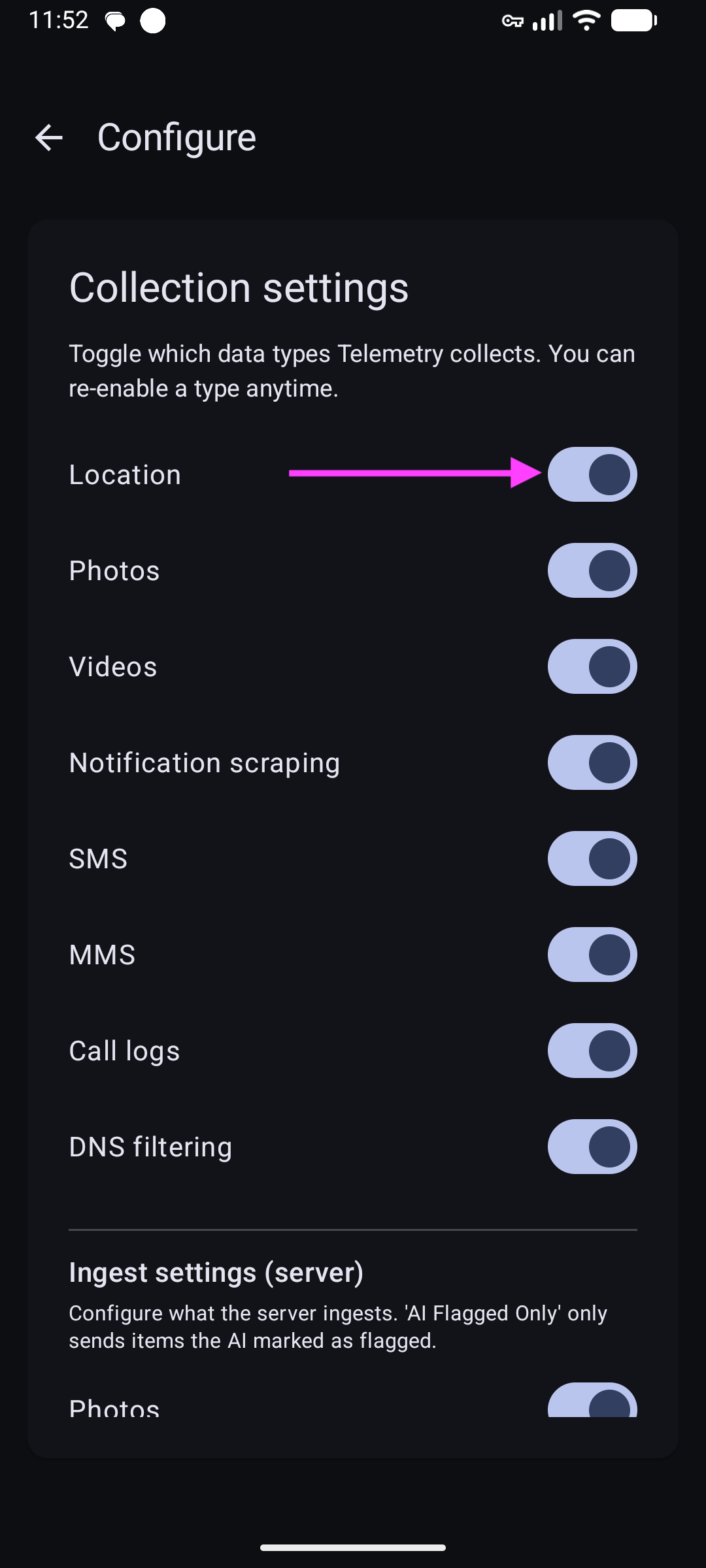
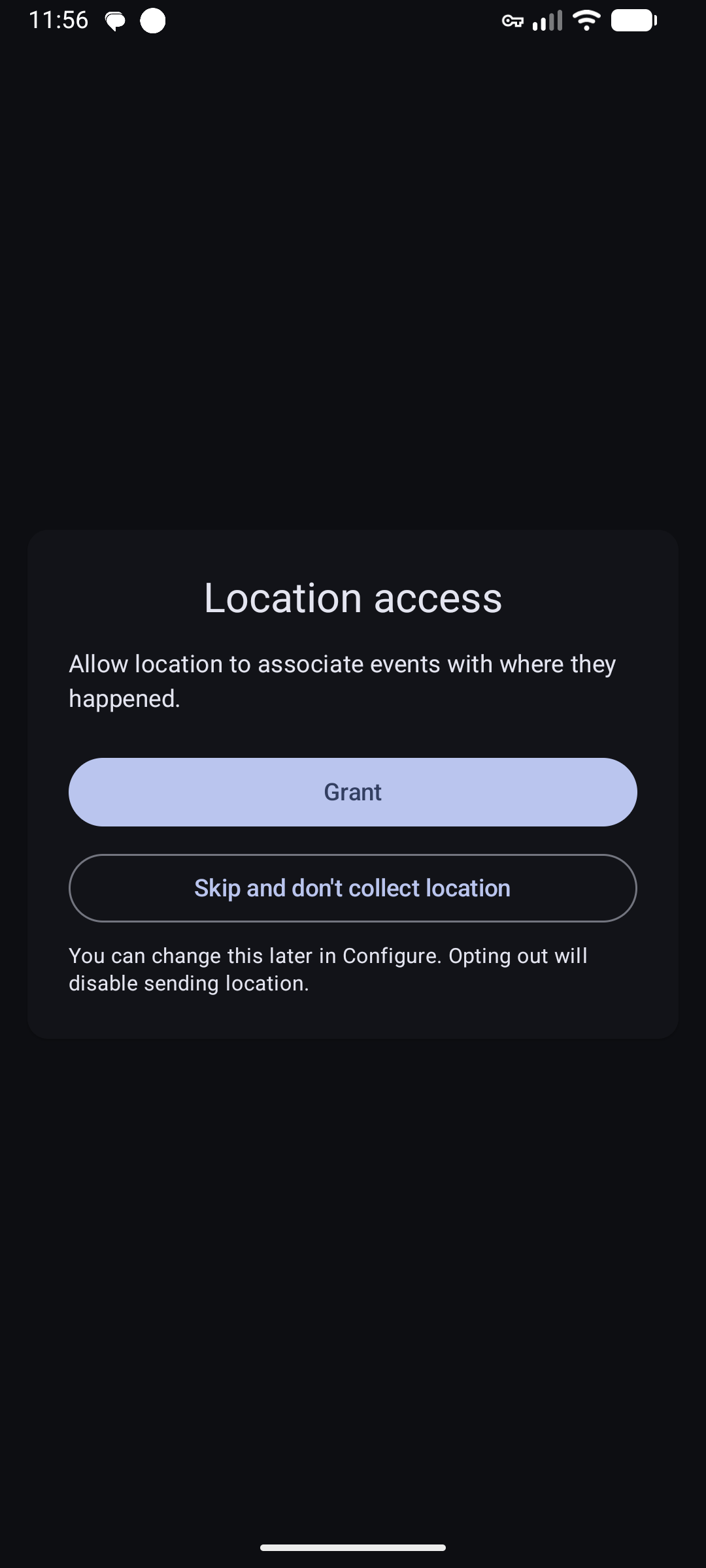
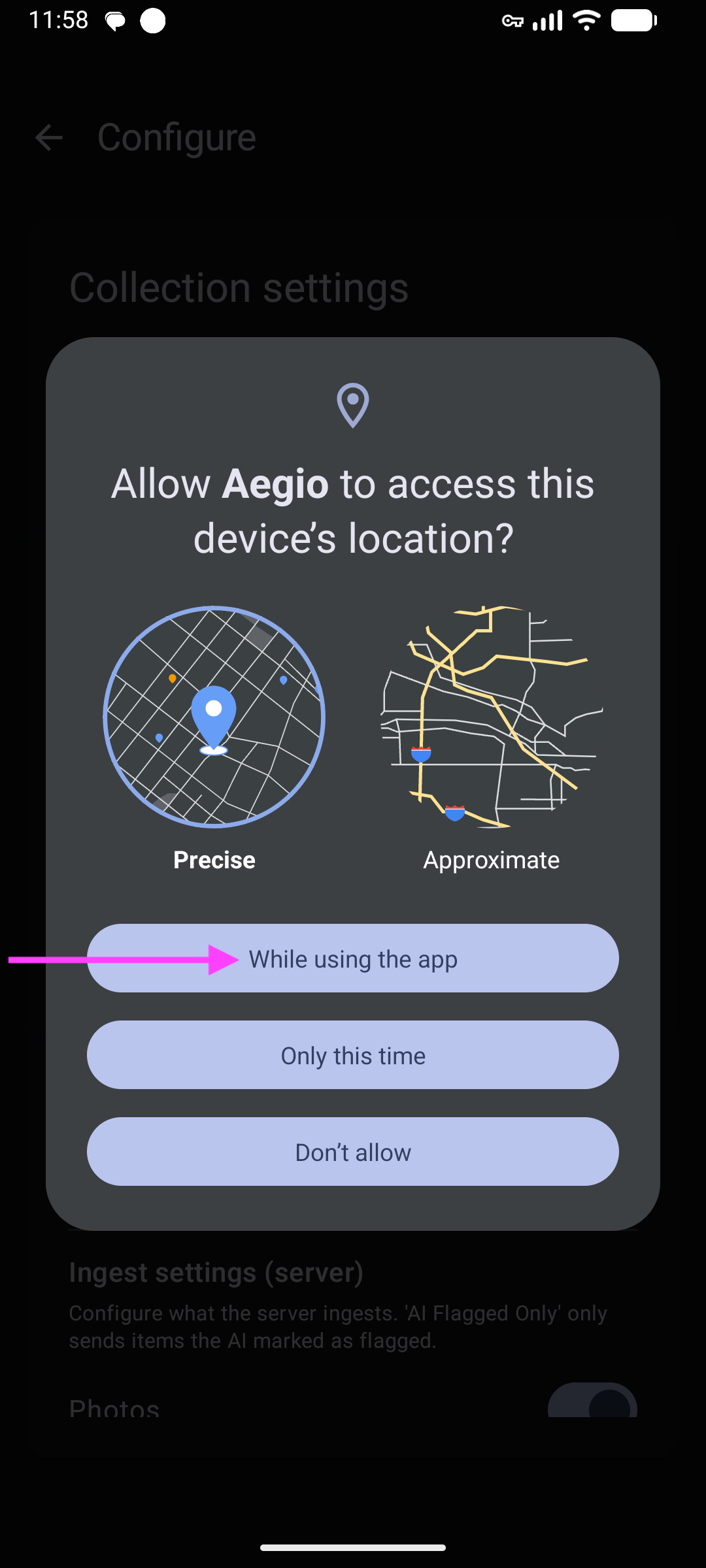
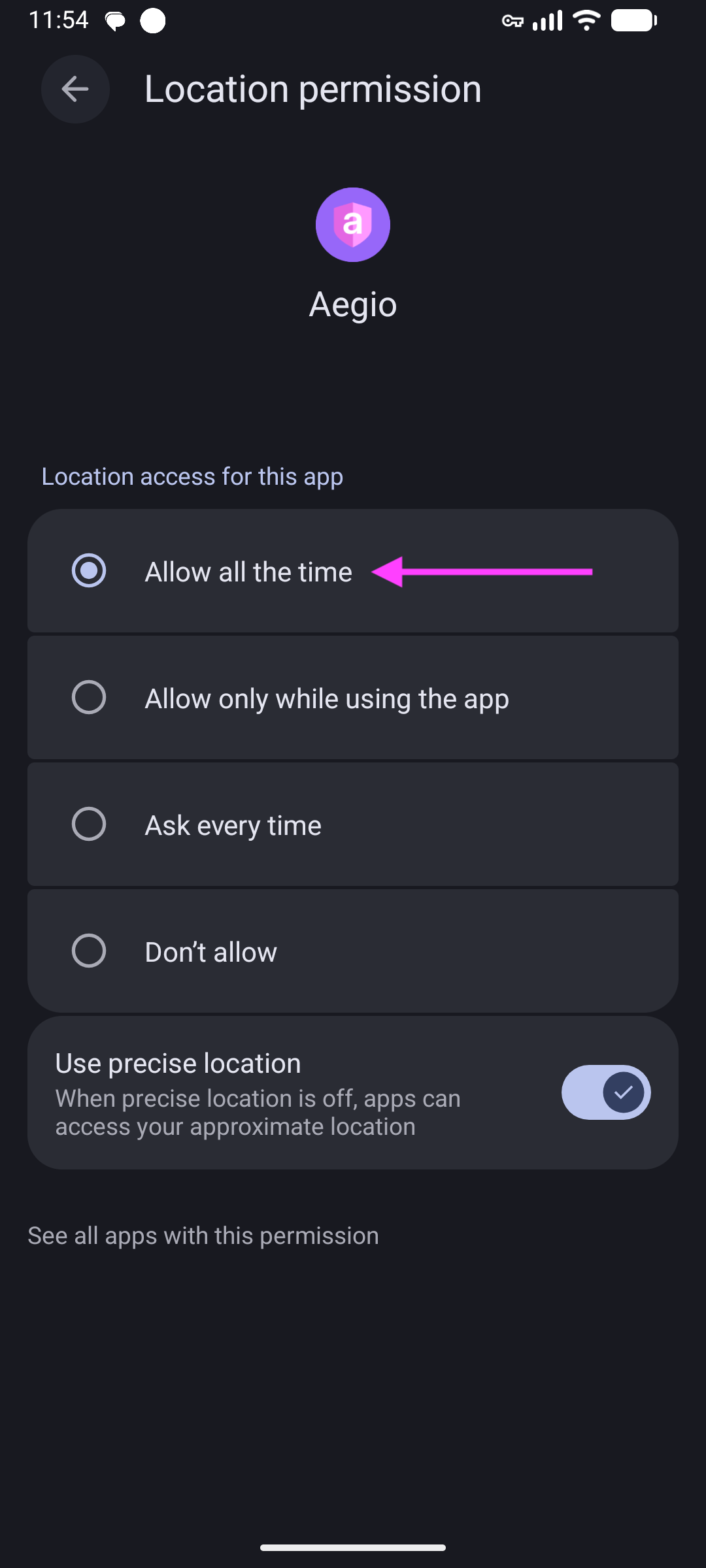
Ensure system Location Services are enabled (GPS/Location On).
Keep the device connected to the internet (Wi‑Fi or mobile data) so updates can be sent.
Tip: Some devices throttle background updates to save battery. Opening the app briefly can help the first fix arrive faster.
View a device’s location
View live location and history
In the web app, select the device from the sidebar.
Click Location. The map shows the latest known position with the timestamp.
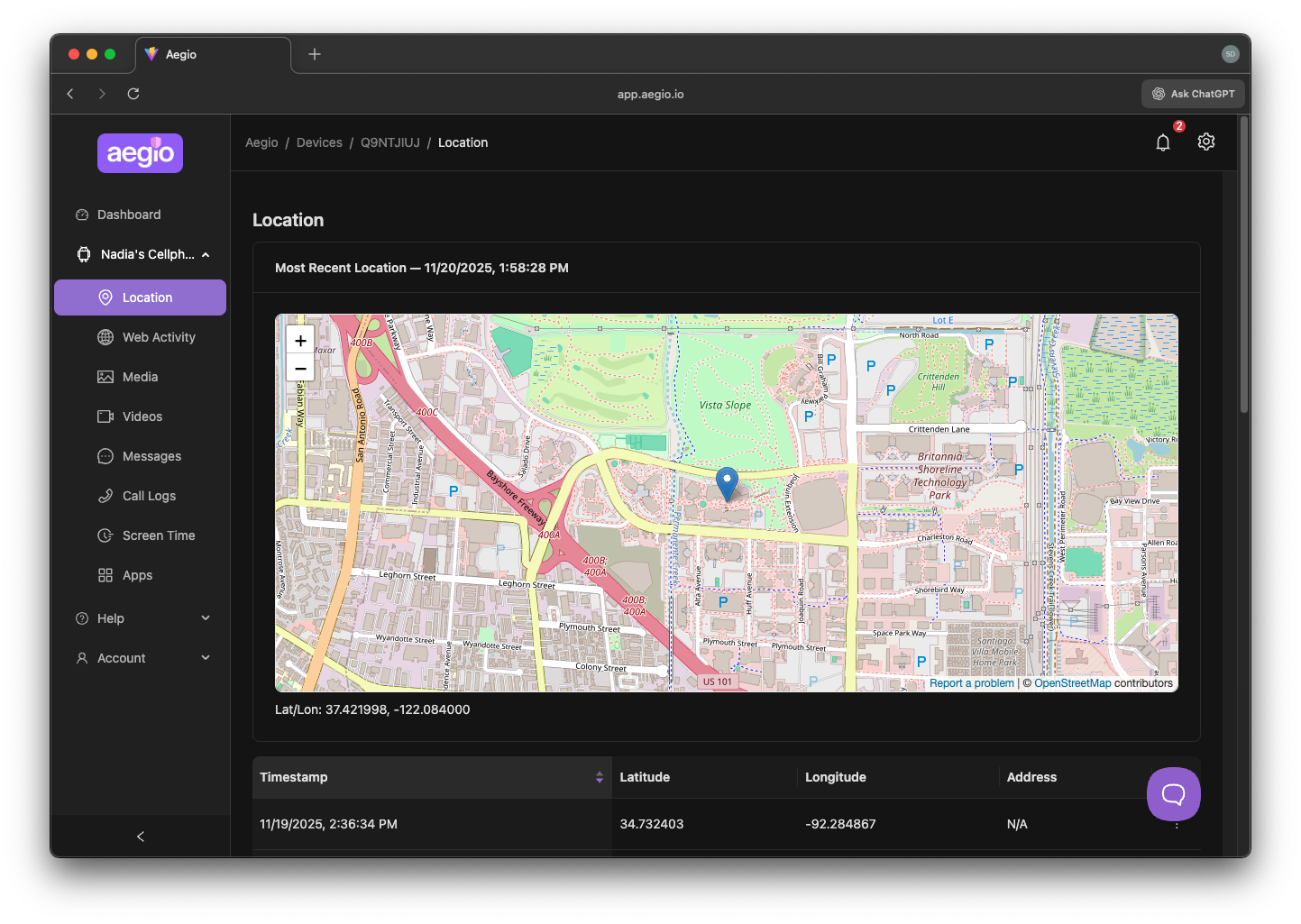
Use the date/time controls to browse recent history. Click a point to see details (time, accuracy).
Use map controls to zoom, pan, or switch layers (where available).
Accuracy and timing
Location accuracy depends on GPS, Wi‑Fi, cell towers, and device sensors. Indoor locations may be less precise.
Updates are sent when the device records a new location and has connectivity. Low‑power modes or OS restrictions may batch updates.
Timestamps are shown in your browser’s local time.
Privacy and data handling
Data retention follows your organization’s policy and plan.
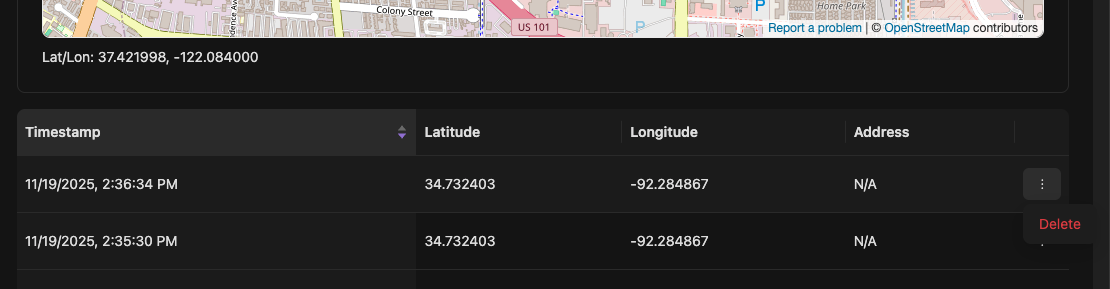
If you want to remove specific location points or ranges, open the Location page for a device and use the context menus on the map or timeline to delete selected data.
Troubleshooting
No location shown
Confirm the device appears under Device Management and is not marked as deleted.
Make sure system Location Services are enabled on the device.
Ensure the Aegio app has Location permission.
Check that the device has an active internet connection.
Open the Aegio app on the device to wake background services.
Location seems outdated
Power‑saving modes can delay updates; disable extreme battery optimization for Aegio.
If the device is offline, the last known position is displayed until it reconnects.
Inaccurate pin
Poor GPS reception (indoors/underground) reduces accuracy. Move to an open area or enable Wi‑Fi scanning.
If issues persist, see Contact Support. Include device model, OS version, last seen time, and screenshots if possible.
FAQs
How often is location updated?
It varies by device activity, OS policies, and connectivity. Typical intervals range from a few minutes to longer when stationary or offline.
How can I export location history?
See Export Data under the device menu.